
Exactix Has Launched!
Virginia 811’s new platform, Exactix, officially launched Friday, June 27, 2025.
Get Started with These Key Resources
Web Ticket Entry (WTE) Support
If you used WTE in the previous system and have questions about any of the updated features, feel free to reach out to us at WTE@VA811.com.
Submitting a Single Address Locate Request in Exactix
If you previously used the Single Address Ticket (SAT) function, you can now use Exactix to self-register and submit a locate request for a single address. Just follow this link to get started: https://exactix.va811.com
How to Become a Web Ticket Entry User
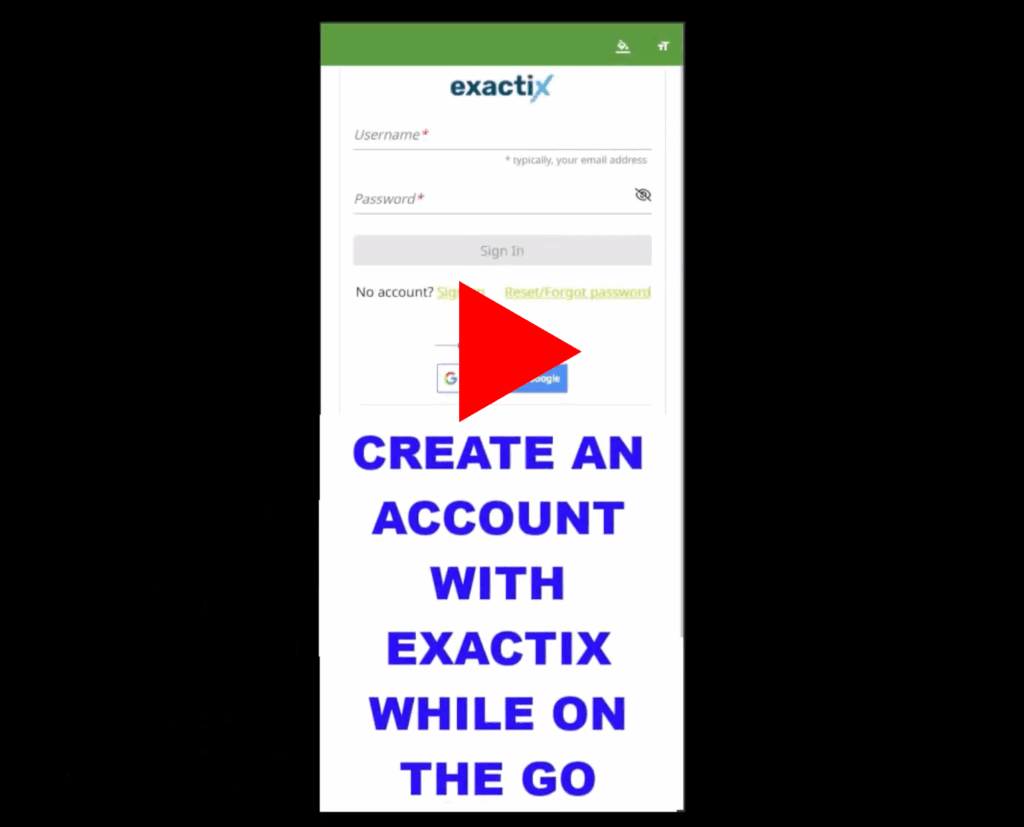
Start by creating an account in Coursettra using the link below. Once you’re registered, select the Web Ticket Entry Training course. After completing the training, a member of our Web Ticket Team will follow up or send you an Exactix registration email.
Get Started Here:
https://app.coursettra.com/n/credential/public/marketing/51598812-8e27-f011-a882-c2395677bcd6
Work Smarter in the Field
This feature helps you work more efficiently and accurately in the field by giving you real-time awareness of your location and your nearby requests—all in one view.
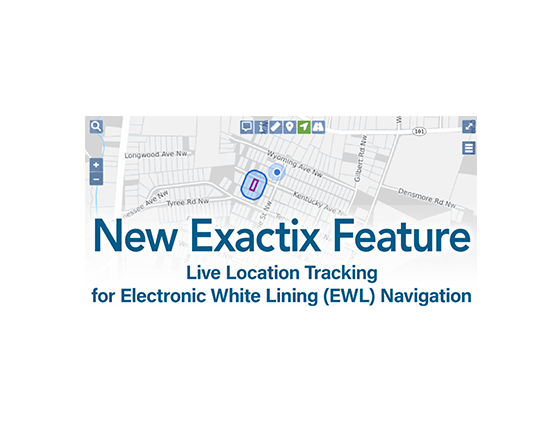
You can now view your real-time GPS location directly on the map in Exactix, making it easier to see where you are in relation to EWL parameters.
When enabled, the map will automatically:
- Show your current position
- Update as you move
- Center and zoom in on your location
- Display nearby locate request Notification and EWL Polygons for quick reference
This makes it easier to navigate to jobs, confirm you’re in the correct area, and understand your position relative to your active requests.
VIEW GUIDE HERE: https://va811.com/wp-content/uploads/2026/05/Live-Location-Tracking-Guide-5-31-26.pdf
JSON Data Delivery is Now Available
Virginia 811 can now deliver locate requests using JavaScript Object Notation (JSON) delivery method, a standardized, modern data format used to exchange information between systems. JSON is a system-to-system delivery method that sends locate request data directly into your software, rather than through email. This enhancement improves how request and notification data is delivered and supported across member systems by enabling faster and more reliable data exchange.
At this time, Virginia 811 will support both email and JSON delivery methods.
-
- Virginia 811 data is now available in JSON format for direct system integration
-
- Members should work with their software providers to ensure they can receive and process JSON data
-
- Virginia 811 will support testing and onboarding, led by Marty Mitchem, Member Services Liaison
-
- Proper configuration ensures accurate and efficient processing of ticket and notification data
-
- Faster and more reliable: Real-time delivery without email delays or filtering issues
-
- Direct integration: Data flows straight into your system, reducing manual handling
-
- Standardization: Standardized formatting minimizes errors and inconsistencies
-
- Enhanced Capabilities: Additional functionality with electronic white lining coordinates.
Members interested in transitioning to JSON can sign up to begin the onboarding and testing process. Once submitted, Virginia 811 will coordinate with your team.
If you have not yet confirmed compatibility, please coordinate with your software provider or contact Virginia 811 for assistance.
SIGN UP FOR JSON TRANSITION:
https://app.smartsheet.com/b/form/019d68ec8a607aa8854847d364e1bdd8
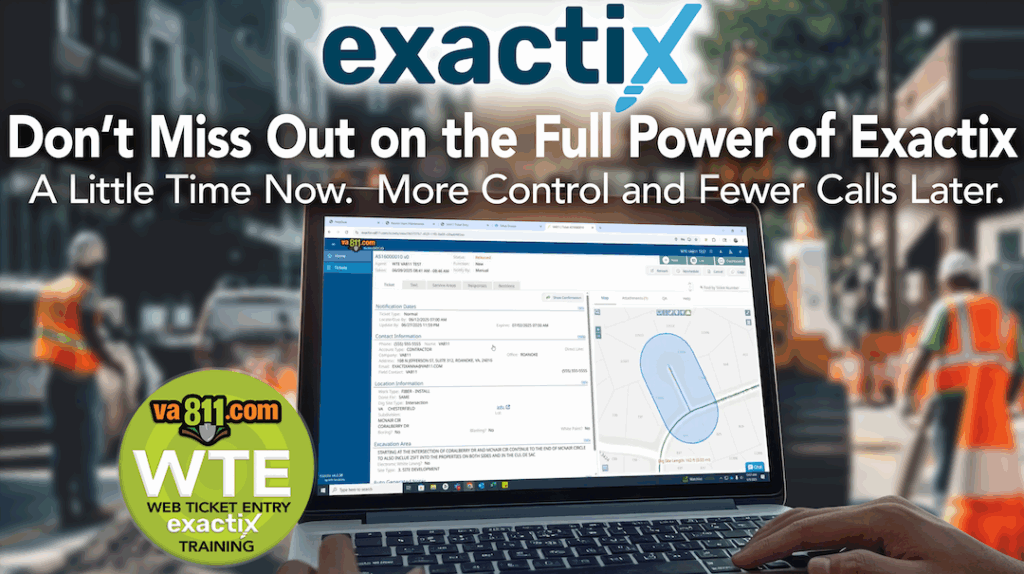
If you previously had a Web Ticket Entry (WTE) account but haven’t completed WTE training in Exactix yet, you’re missing features that make your work faster and easier.
For projects beyond a single address request, Exactix WTE gives you all the mapping tools you need in one place. No waiting—map your locate requests on your own time.
Training is quick and the payoff is big—less calling, more control, and faster results. The sooner you’re trained, the sooner you can put these tools to work.

Ready to get started?

Good news!
With our latest Exactix update, you can now Update or Re-mark your locate requests yourself – no need to call in.
We encourage you to take advantage of this self-service option. It’s quick, easy, and available whenever you are.
New Exactix Resources
Set Up Your Exactix Account
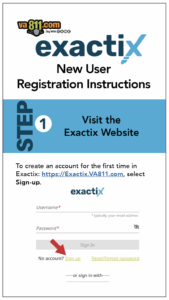
New User Account Setup
Create a Mobile-Friendly Exactix View
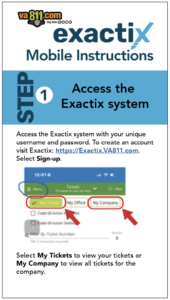
Mobile Instructions
Stay in the Know with the Exactix Resource Hub: Always Up to Date
Check back often for the latest resources, announcements, and tips to support your transition to Exactix.
Information About Exactix and the Conversion
This upgrade affects everyone who uses the Virginia 811 system, making it essential to stay informed.
The transition to Exactix will impact many of your routine interactions with Virginia 811, including:
- Web Ticket Entry (WTE)
- Member Management and Mapping Updates
- Locator Functions and Delivery of Positive Responses
No matter your role, these changes will affect how you work with Virginia 811 — preparation is key.
L
Trusted by 811 centers and damage prevention professionals nationwide, Exactix is a modern, web-based system designed to streamline locate requests while enhancing transparency and communication between excavators, utility operators, and call centers. With its proven reliability and user-friendly design, Exactix has become the go-to solution for many in the industry.
🎥 Watch our Exactix Panel Highlights from the 2025 Virginia 811 Annual Membership Meeting. In this short video series, representatives from South Carolina 811, UDigNY, and Sunshine 811 share real-world insights, tips, and experiences with Exactix. Whether you’re new to the platform or preparing for the transition, these clips offer valuable guidance to help you get ready.
CLICK ON EACH IMAGE TO VIEW










Information for Current Web Ticket Entry (WTE) Users
Join Virginia 811 for a free 60-minute live demo to get a first look at the Exactix platform before its official launch.
Designed for current WTE users, this general session offers a first look at Exactix, a walkthrough on how to enter a Locate Request, and an open Q&A—giving you a clear understanding of what’s changing and helping you feel more confident ahead of the transition.
No registration is required. Please join a live session by visiting the Virginia 811 Events Calendar here: https://va811.com/events/
Onboarding to the Virginia 811 Exactix WTE System
No. As we prepare to transition to our new center software system, Exactix, the Virginia 811 Academy platform is being retired. All training on that site has been paused as we develop new materials and live sessions to support the launch of Exactix and Web Ticket Entry (WTE).
Going forward, all WTE and Exactix training will be delivered through a new platform, Coursettra.
For updates, please continue to visit this page. New information will be posted here as it becomes available.
We appreciate your patience during this transition and look forward to supporting you with improved tools and resources.
If you have any questions or need assistance, or would like early access to training in Coursettra, please contact us at WTE@VA811.com.
Existing Virginia 811 WTE Account Start-Up Process
As part of this transition, we’ve begun onboarding current Web Ticket Entry (WTE) users through a tiered rollout approach. Keep an eye out for an email detailing when you will be invited to take part in a short series of educational videos introducing the new Exactix Web Ticket Entry platform. If you have not yet received an email but are interested in starting training, please send an email to WTE@VA811.com.
If you’re already familiar with submitting locate requests, the new system should feel intuitive. Still, spending just a few minutes with these quick videos will help you get comfortable with the updated tools and ensure a successful transition to Exactix.
We’re continuing to build out this resource—check back regularly for the latest updates and new content to support your transition to Exactix.
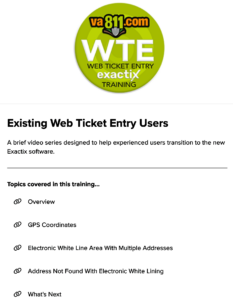
You will be asked to complete a brief video series designed to help experienced users transition to the new Exactix platform for submitting locate requests. This software introduces several enhancements, including tools that provide accuracy, streamline the locate request process, and enhance communication with utility operators. Throughout the series, common locate request scenarios will be reviewed and key new features will be highlighted.
 No matter your role, these changes will affect how you work with Virginia 811 — preparation is key.
After completing the Existing Web Ticket Entry course on how to submit locate requests in Virginia using the new Exactix software, you will receive a registration email directly from Exactix. This email may land in your junk or spam folder, so be sure to check those folders as well. Once you complete registration, you’ll gain access to Exactix in a test environment. This means you’ll be able to explore the new system and practice submitting locate requests without creating any live locate requests—no notifications will be sent to utilities during this phase. This test environment will be available until we officially transition to Exactix as our live system.
Our planned go-live date for Exactix is late June or early July 2025. When that time comes, you’ll be ready to submit real locate requests through Exactix.
Please note: Your Exactix username and password will be new and different from any credentials you may have used previously.
Yes. Your account is being migrated from the previous system with all of your existing permissions intact. You will have the same access and capabilities in Exactix that you had before.
New and Enhanced Features of the Virginia 811 Exactix WTE Platform
We understand you may have questions about how Exactix functionality compares to the systems you currently use—like ERMA, Locate Assist, Ticket Revision Express (TRE), Location Enhanced Ticket Search (LETS), and others.
Most of the tools and features you rely on are still available—just within the new Exactix interface. While names and navigation paths may have changed, core functionality largely remains intact or has been enhanced in Exactix.
Below is a link to a list of some of the items and functionality now built directly into the Exactix system. As details become available, we’ll show you how to access and use these tools in the new platform. We’re focused on making this a smooth transition and will continue providing clear, timely updates leading up to the conversion, so please check this resource often for the latest guidance.
https://va811.com/wp-content/uploads/2025/06/Exactix-Features-Overview-6-9-25.pdf
Yes, the form has been redesigned with a more intuitive flow. Key details like scheduling, start dates, and times are now displayed at the beginning of the form, helping you plan more efficiently. The layout is cleaner, easier to navigate, and better organized from start to finish.
Yes. Exactix allows users to be grouped not just by company, but also by specific office. This means if your company has multiple offices, you can be associated with the correct one. This helps improve visibility into locate requests submitted by your coworkers—especially those in the same office.
Yes. Exactix will attempt to automatically apply a notification polygon based on the information you enter in the Location Information section. You can still edit or adjust this polygon if needed, but it provides a helpful starting point and can save you time.
Definitely. The map now includes streamlined tools that are built right into the interface, so you no longer need to switch between multiple tabs to complete mapping. Everything you need is easily accessible and designed to guide you through the process more efficiently.
GPS functionality is much more user-friendly in Exactix. Whether entering a single point or multiple sets of coordinates, the process is streamlined. Best of all, the system can automatically plot those points on the map and generate notification polygons for you.
No. In Exactix, free-text fields have been removed from areas where open entries were never intended. For example, the old “Instructions” field is gone. Instead, Exactix includes a new Auto Generated Notes section that dynamically displays system-generated content where appropriate.
Electronic White Lining (EWL) is a visual tool that helps locators clearly identify the proposed excavation area. When you select “Yes” for EWL during the locate request process, you’ll be prompted to manually draw a polygon that outlines your exact dig site.
The purpose of EWL is to provide a precise visual representation of where excavation will occur. This is separate from the notification polygon, which is automatically generated to alert utility members whose underground facilities may be affected by the planned work.
It’s important to note that utility members in Virginia use the same mapping software to define their own notification areas. Even if their facilities aren’t visibly marked on the map, this shared system ensures their presence is recognized.
An accurate notification polygon helps ensure the correct utilities are notified. While the EWL dig site tool can assist with further defining the excavation area, it is not required. However, if the notification polygon is drawn in the wrong area or doesn’t fully cover the planned excavation area, it increases the risk of damage to underground infrastructure.
Yes—Electronic White Lining will be available on the WTE Exactix platform immediately upon launch, allowing users to easily mark their proposed excavation area online as part of the locate request process.
Get a preview look of EWL in Exactix:
Exactix Ticket Search Options
With the transition to Exactix, both the Location Enhanced Ticket Search (LETS) feature and the Ticket Search function on the Virginia 811 website have been retired. Moving forward, users will need to log in with a registered Exactix account to access your locate request information.
This change was driven by updated privacy concerns and mobile platform requirements. While anonymous GPS-based searches are no longer available, Exactix provides new capabilities—including mapped views of excavation sites and more efficient request management—all within a secure platform.
Enhanced ticket search functions are now built directly into the Exactix platform. After logging in with a registered account, users can search locate requests, view job sites on a map, and manage activity—all within a single, secure platform.
How to complete a Ticket Search:
- From the Ticket Dashboard screen select the List Tab
- All of the below headers are “searchable” to complete a search click on the header and enter information.
(located at the top right corner of the screen)

View our location enhanced ticket search in Exactix demo video:
With Virginia 811’s transition to a new software platform on June 27, 2025, the Location Enhanced Ticket Search (LETS) feature and the public Ticket Search function were retired. This change was made to align with updated privacy, data, and mobile platform standards that now limit the public visibility of certain locate request details.
While the previous system allowed broader viewing access, the new Exactix platform has location-based ticket search capabilities built directly into it — but access is now permission-based. To view locate request information, you must log in with a registered Exactix account, and what you can see will depend on your assigned role and associated company only.
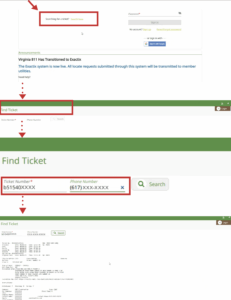
However, there is a new option for looking up specific tickets.
If you know both the ticket number and the phone number associated with it, you can use the Find Ticket feature to search for and view details of that specific ticket — regardless of your Exactix login status or user role.
Get started with Exactix and Access the Find Ticket feature here: https://exactix.va811.com
When multiple parties are involved in a project – such as general contractors, utilities, and subcontractors – tracking and accessing locate requests can become complex. To improve coordination and increase transparency, Virginia 811 has introduced three practical solutions that will make it easier for key stakeholders to view and manage locate request information.
These options are:
Option 1: Export to CSV
Option 2: Authorization Form
Option 3: Shared Tracking Tool (Contractor-Led)
Learn more about these options here: Locate Request Visibility Solutions for General Contractors and Utilities
While the LETS function provided a convenient way to view certain locate request details, the underlying information was not exclusive to Virginia 811. In many cases, authorized users could already access similar data through their organization’s systems or receiving software.
Some users may have internal software tools—such as Polaris or other ticket management systems—that are capable of pulling in and displaying additional locate request information. The functionality of these tools depends on how they’re configured and managed by each organization. If you’re unsure of what your system can access or display, we recommend working directly with your internal IT team or software provider to explore available options.
What’s New in Exactix WTE
🎥 Get a quick look at the latest tools, upgrades, and user-friendly features of Exactix.
GET A PREVIEW LOOK AT ELECTRONIC WHITE LINING (EWL) IN EXACTIX
EWL helps improve accuracy and reduce risk by letting you draw your dig site directly on the map during the locate request process.
When you select “Yes” for EWL in your request, you’ll be prompted to draw your actual dig site—giving locators a clear, visual understanding beyond the automated polygon.
It’s not required, but EWL adds clarity, cuts confusion, and supports safer excavation. It will be available immediately in Exactix Web Ticket Entry (WTE) when the platform launches.
GET A PREVIEW LOOK AT GPS COORDINATES IN EXACTIX
Adding GPS coordinates to your locate request in Exactix helps pinpoint your dig site with greater precision. Whether you’re working in a rural area or want to provide an exact spot within a larger job site, GPS coordinates offer a valuable layer of accuracy for utility locators.
Adding GPS coordinates is optional—but highly recommended for improving clarity and helping prevent underground damage. GPS input will be available in Exactix Web Ticket Entry (WTE) at launch.
GET A PREVIEW LOOK AT
LETS IN EXACTIX
With the transition to Exactix, Location Enhanced Ticket Search (LETS) is now built directly into the platform. Users will need to log in with a registered Exactix account to access locate request information.
Exactix offers enhanced LETS features, including the ability to view excavation sites on a map and manage locate requests more efficiently—all within a single, secure platform.
You’ll find the same trusted functionality, now streamlined and centralized for a better user experience.
New Account Setup & Training for Virginia 811 Exactix
No. As we prepare to transition to our new center software system, Exactix, the Virginia 811 Academy platform is being retired. All training on that site has been paused as we develop new materials and live sessions to support the launch of Exactix and Web Ticket Entry (WTE).
Going forward, all WTE and Exactix training will be delivered through a new platform, Coursettra.
For updates, please continue to visit this page. New information will be posted here as it becomes available.
We appreciate your patience during this transition and look forward to supporting you with improved tools and resources.
If you have any questions or need assistance, or would like early access to training in Coursettra, please contact us at WTE@VA811.com.
Details about where to access Exactix training and how new users will create their accounts are still being finalized. We understand the importance of this information for a smooth transition and will share it as soon as it’s available.
Please check back regularly for updates and watch for communications from Virginia 811 for the latest information and new content to support your transition to Exactix.
Yes, but in the new Exactix system, SAT will operate a bit differently than what you may be used to. Unlike the previous version, there won’t be a SAT 1.0 and 2.0. Instead, all SAT requests will go through a single, streamlined version built directly into Exactix. This change is designed to simplify the process and provide a more consistent user experience.
The “Additional Comments” field has been removed to help streamline the locate request process and make submissions more efficient.
Virginia 811 Exactix WTE Support
Virginia 811 Exactix Support
- Built-In Help Menu: Each section of the the Exactix locate request entry screen includes a built-in HELP menu accessible in each section of the form. This feature provides straightforward guidance on how to complete each field accurately, offering support as you move through the form.
- Chat Feature: The new Exactix Chat feature connects you with a live Virginia 811 team member — no AI, just real help! Use it anytime while navigating Exactix for quick, friendly assistance during normal business hours.
- Email Support: For help outside the system or if chat isn’t available, feel free to email us at WTE@VA811.com.
- Phone Support: You can also call 811 and select Option 3 to speak directly with a Web Ticket Quality Coordinator.
Member Service Information
Member Service Training
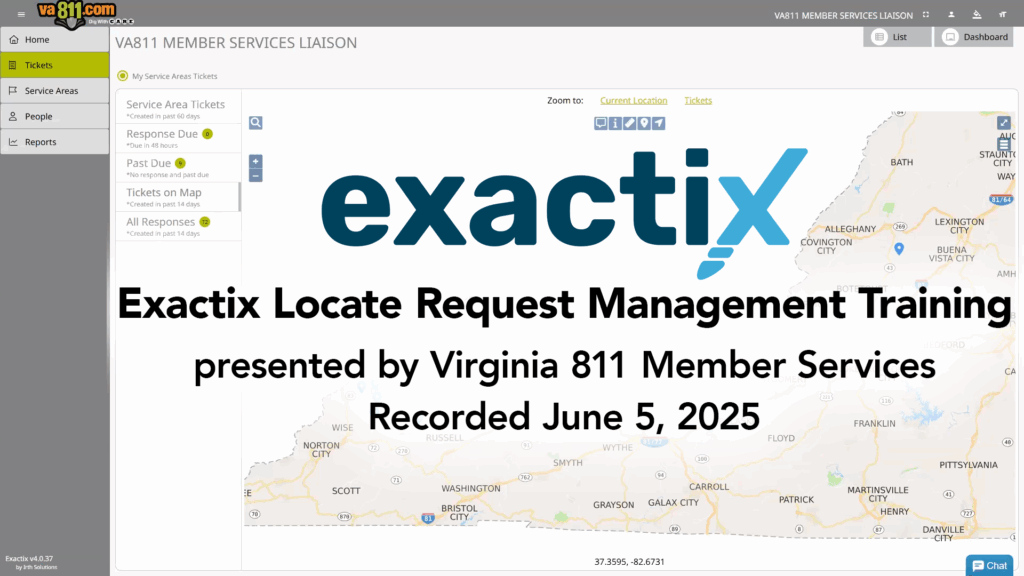
View the June 5, 2025 Exactix Locate Request Management Training live demo here:
General
No service interruptions are expected during this transition; however, preventative and proactive measures are being taken to ensure continuity.
Account Access
Member history will be retained as it is now, with the information being transferred from our current system to Exactix with the usual 6-year requirement.
Notifications & Communication
Check this designated Exactix Hub page regularly for important updates and resources. You’ll also receive email communications from Virginia 811 to keep you informed about any updates or issues during the move to Exactix.
We are happy to assist you on our Help Desk with any questions and will direct you to the proper contact as appropriate to resolve your concerns.
Not at all. Our processes and procedures for assisting customers will not change. Virginia 811’s Notification Center is available 24/7 just as we are now.
The Member Services Team is currently developing training content for our members.
Please check back regularly for updates and watch for communications from Virginia 811 for the latest information and new content to support your transition to Exactix.
Member Utility Exactix Ticket Search Options
With the transition to Exactix, both the Location Enhanced Ticket Search (LETS) feature and the Ticket Search function on the Virginia 811 website have been retired. Moving forward, users will need to log in with a registered Exactix account to access your locate request information.
This change was driven by updated privacy concerns and mobile platform requirements. While anonymous GPS-based searches are no longer available, Exactix provides new capabilities—including mapped views of excavation sites and more efficient request management—all within a secure platform.
Enhanced ticket search functions are now built directly into the Exactix platform. After logging in with a registered account, users can search locate requests, view job sites on a map, and manage activity—all within a single, secure platform.
How to complete a Ticket Search:
- From the Ticket Dashboard screen select the List Tab
- All of the below headers are “searchable” to complete a search click on the header and enter information.
(located at the top right corner of the screen)
View our location enhanced ticket search in Exactix demo video:
With Virginia 811’s transition to a new software platform on June 27, 2025, the Location Enhanced Ticket Search (LETS) feature and the public Ticket Search function were retired. This change was made to align with updated privacy, data, and mobile platform standards that now limit the public visibility of certain locate request details.
While the previous system allowed broader viewing access, the new Exactix platform has location-based ticket search capabilities built directly into it — but access is now permission-based. To view locate request information, you must log in with a registered Exactix account, and what you can see will depend on your assigned role and associated company only.
However, there is a new option for looking up specific tickets.
If you know both the ticket number and the phone number associated with it, you can use the Find Ticket feature to search for and view details of that specific ticket — regardless of your Exactix login status or user role.
Get started with Exactix and Access the Find Ticket feature here: https://exactix.va811.com
When multiple parties are involved in a project – such as general contractors, utilities, and subcontractors – tracking and accessing locate requests can become complex. To improve coordination and increase transparency, Virginia 811 has introduced three practical solutions that will make it easier for key stakeholders to view and manage locate request information.
These options are:
Option 1: Export to CSV
Option 2: Authorization Form
Option 3: Shared Tracking Tool (Contractor-Led)
Learn more about these options here: Locate Request Visibility Solutions for General Contractors and Utilities
While the LETS function provided a convenient way to view certain locate request details, the underlying information was not exclusive to Virginia 811. In many cases, authorized users could already access similar data through their organization’s systems or receiving software.
Some users may have internal software tools—such as Polaris or other ticket management systems—that are capable of pulling in and displaying additional locate request information. The functionality of these tools depends on how they’re configured and managed by each organization. If you’re unsure of what your system can access or display, we recommend working directly with your internal IT team or software provider to explore available options.
Even without LETS, you can still help homeowners understand why markings may appear on or near their property.
When a Locate Request is submitted—whether by a neighbor, contractor, utility, or public agency—utility operators mark any underground lines that could be affected by the planned work. So even if the homeowner didn’t personally contact 811, someone nearby likely did.
To help you identify what the markings represent:
Refer them to the APWA color code chart, which shows what each color means (e.g., red = electric, yellow = gas):
What Do the Markings Mean? https://va811.com/check-status/what-do-the-markings-mean/
Point them to the utility letter code directory, which helps identify who placed the markings:
Three-Letter Marking Designations: https://va811.com/homeowners/three-lettermarking- designation/
If you still have questions after reviewing those resources, you can contact the Virginia 811 Help Desk by dialing 811 and selecting the Help Desk option. Our team may be able to assist the customer with additional details, if available.
Yes! A new permission setting in Exactix now allows Service Area users to view all responses associated with a ticket — not just those tied to their specific Service Area. This provides a more complete view of activity on each locate request.t
At this time, Virginia 811 will support both email and JSON delivery methods.
If you have not yet confirmed compatibility, please coordinate with your software provider or contact Virginia 811 for assistance.
This feature is available to roles assigned within the Service Area user group, such as the Member Response role. Once the new permission is enabled for that role, users will automatically be able to view all ticket responses for their tickets in Exactix.
If you’re a Service Area user and you’re unable to see all responses on your tickets, we recommend reaching out to the Virginia 811 Help Desk by dialing 811 and selecting the Help Desk option. They can review your account and confirm whether you’re assigned to the correct user role(s) with the proper permissions.Vi
Member Mapping Information
Yes, your current notification areas within Newtin will be imported into Exactix.
All Member notification areas have been imported into the Exactix system and are now available for review.
To assist with this process, a step-by-step PDF guide and instructional video are available. These resources will walk you through how to review your current notification areas in Exactix.
We recommend completing your review before June 27, 2025 to ensure everything is accurate ahead of the system launch.
View PDF Instructions: https://va811.com/wp-content/uploads/2025/06/Registration-within-Exactix.pdf
View Video: https://app.coursettra.com/n/credential/public/marketing/94dbf1e2-5341-f011-a882-c2395677bcd6
| Newtin System Term | Exactix System Term |
|---|---|
| NEWTIN | EXACTIX |
| Member | Member |
| Member Code | Service Area |
| Locator / Ticket Management Software | Service Provider |
| Member Mapping (also known as Mapping), Notification Area (Footprint) | Registration (also known as Registration Area(s) or Registration Map) |
Registration Areas will be created and/or submitted through our new software, Exactix.
Each Registration Area will have at least one designated Database contact. This contact will be responsible for maintaining their areas, which includes:
- Reviewing them at least annually
- Adding or removing areas
- Submitting shapefiles when necessary
Access to Exactix will require a login.
Shapefiles must be submitted in ESRI Shapefile format. Any Geographic Coordinate System and projection are accepted.
The system default buffer will be 100 feet when importing lines or points.
The system default buffer will also be 100 feet when manually adding Registration Areas.
Only complete Registration File replacements will be accepted for import through the software. File additions or appends will no longer be accepted.
Mapping will now be approved upon Virginia 811’s review or by request. We can schedule a future date and time for approval. File additions/appends will no longer be accepted for import.
You can start creating Registration Areas in one of the following ways:
- (1) Start with a Registration Map from a previous version
- (2) Start with an empty Registration Map (for new members)
- (3) Copy a Registration Map from another service area
- (4) Import from an ESRI Shapefile layer
Navigation within the Registration (Map)
 Search Option
Clicking on the Search icon will let you search by Streets, Intersections, Places, Counties and Points of Interest, as well as Lat/Lon Coordinates.
 Zoom In
Adjust the view to make it appear larger, showing more detail
 Zoom Out
Adjust the view to make it appear smaller, showing less detail
 Cancel/Discard
The Cancel/Discard icon will delete the changes you made, keeping the original registration intact. Icon changes color to Green when active.
 Undo
Undo
The Undo icon will let you remove any changes you made, keeping the original registration in tack. Icon changes color to Green when active.
 Edit
Edit
The Edit mapping tool allows you to edit any feature that exists on the registration map. Select the Edit icon and it will turn green. Then “left click” on the polygon and it will turn blue with hash marks. You can then start redefining the shape. Once you have redrawn the registration, you can save your changes by clicking off the Edit tool or use the Cancel/Discard and Undo options to revert to the original registration. Icon changes color to Green when active.
Move mouse to feature to edit or click Add/Append (+) or Remove/Cut (-) buttons if finished editing.
 Buffer Street or Map Feature
The Buffer Street or Map Feature lets you select an address range/street segment to remap the registration. Select the Buffer Street or Map Feature icon and it will turn green. Go to the area where you want to remap the registration and double click on the street segment. The default buffer size is 100ft. The registration area will appear with blue hash marks. At this point you can either Save, Cancel/Discard or Undo those changes. Icon changes color to Green when active.
 Draw Polygon
The Draw Polygon tool can be used when the area you are trying to map is an irregular shape. Select the Draw Polygon tool and “left click” on the area where you want to start drawing your registration. The Draw polygon contains a 100ft buffer. Outline the area you want to map by left clicking on points where the direction changes. When you have finished outlining the area, then double left click to stop drawing. The registration area will appear with blue hash marks. At this point you can either Save, Cancel/Discard or Undo those changes. Icon changes color to Green when active. Double-click to buffer feature
 Draw Rectangle
The Rectangle Tool can be used to draw either a rectangular or square registration. This tool is useful when the area you need to map extends more than 100ft off the road (e.g. into a field). This Draw Rectangle tool contains a 100ft buffer. The new registration will appear with blue hash marks. At this point you can either Save, Cancel/Discard or Undo those changes. Icon changes color to Green when active.
 Draw Circle
The Circle can be used to draw a circle and/or a point that automatically has a 100ft radius. In addition, the circle can be expanded to a larger size. If you want to use the automatic 100ft radius, just double click at the point where you want the circle to be placed. If you want to expand the circle, then continue to drag the circle to the required radius and double click to end. The new registration will appear with blue hash marks. At this point you can either Save, Cancel/Discard or Undo your changes. Icon changes color to Green when active.
 Draw Line
The Draw Line is used to draw a linear shaped registration or to map out streets that have facilities located directly along or underneath them. This is the best tool to use for facilities that run along streets, especially ones that wind and turn frequently. Once you have finished drawing the segment, you can click once to continue drawing the segment as you adjust the view or double click to complete the polygon, and the new registration will appear with blue hash marks. The Draw Line tool contains a 100ft buffer. At this point you can either Save, Cancel/Discard or Undo your changes. Icon changes color to Green when active.
 Overview Map
A small window will appear, providing an overview of the map. Click on it to open and to close.
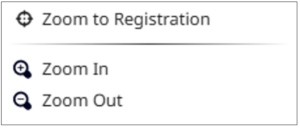
Zoom Options
At any time, you can right click within the map and select a zoom option
Any questions or concerns regarding the transition to the new software and/or with managing your Registration can be sent to Mapping@VA811.com.
Virginia 811 may provide information or instructions about whitelisting IP addresses if it becomes necessary based on how the system operates.
Whitelisting IP addresses involves allowing specific IP addresses or ranges to bypass security measures, such as firewalls, so they can access a network or system. This ensures that only trusted addresses are granted access, while others are blocked or restricted.
We expect to have more details coming soon and will update this FAQ once we have further clarification on whether whitelisting will be needed and how it will be implemented.